DoublesMatch3Web
A complete guide to running pickleball, badminton and tennis doubles court rotations — player pool management, fair-play allocation, live court tracking, and session history.
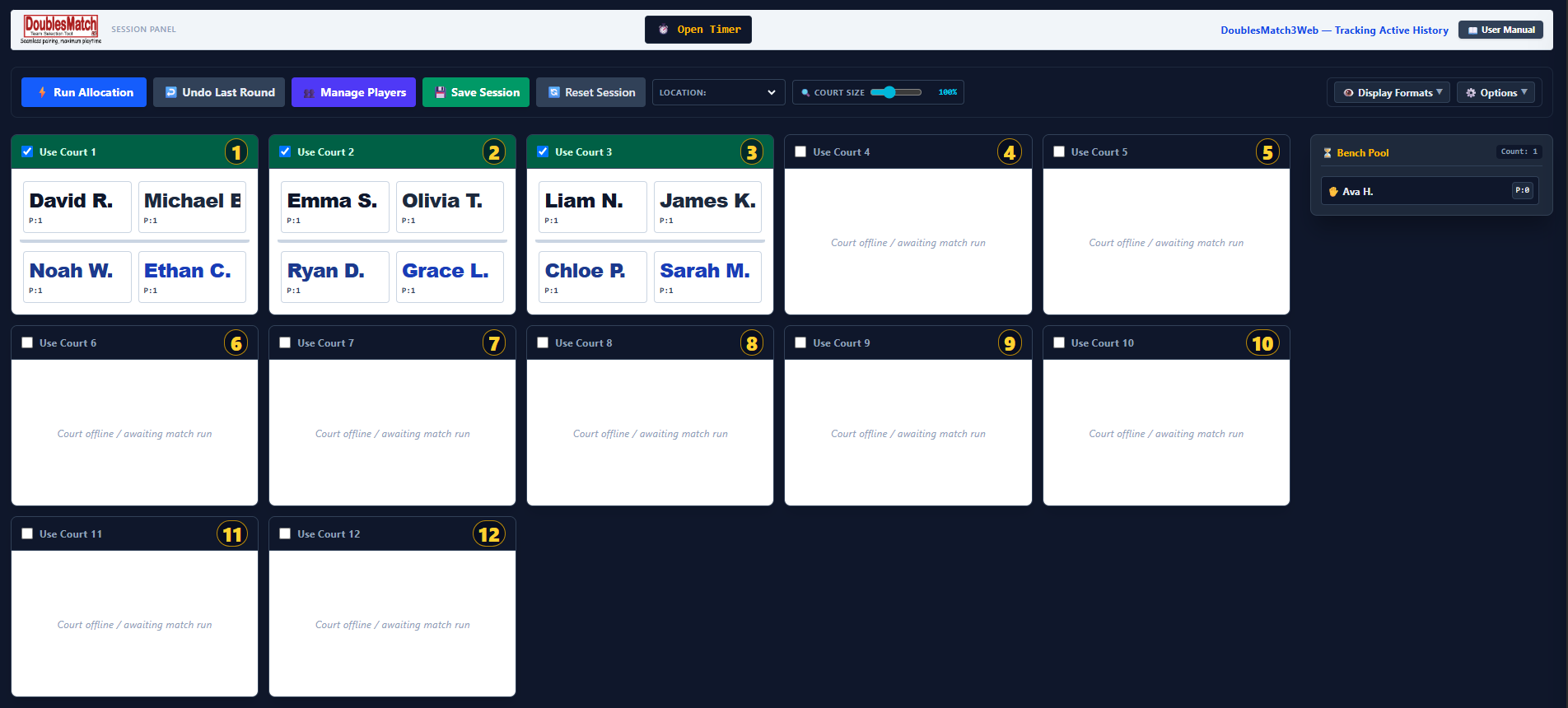 📸
📸
1. Overview
DoublesMatch3Web (DM3W) helps you run a doubles session — badminton, tennis or pickleball — for any number of players and courts. It keeps a pool of players, automatically allocates fair doubles matchups onto active courts each round, tracks who has played with whom and how often, and lets you manually override anything the automatic engine produces.
A typical session looks like this:
- 1Build or import your player pool, and mark everyone who is present as checked in.
- 2Choose your allocation options (fixed partners, mixed/gender/skill-tier doubles, rating balance, etc).
- 3Click ⚡ Run Allocation to generate the first round.
- 4Play the round, using the round timer (pop it out into its own window with ⏱️ Open Timer) if you like.
- 5Click ⚡ Run Allocation again for the next round — the engine automatically prioritises anyone who sat out.
- 6At the end of the session, use 💾 Save Session to export your records.
2. Getting Started & Locations
The Location dropdown in the toolbar lets you keep separate player pools and rounds for different venues (for example, two different clubs or courts on different nights) inside the same installation of the app.
 📸
📸
Changing location
Selecting a different location from the dropdown will:
- Ask you to confirm, since it resets the current round board.
- Optionally offer to back up the current roster and round history as CSV files before continuing.
- Clear the on-screen courts and round history, and reset each player's "times played" and "last court" counters for the new location.
3. Installing as an App
DM3W can be installed like a native app on supported devices, so you (or whoever runs the session) don't need to keep finding it in a browser tab or remember a web address.
 📸
📸
Installing on Chrome, Edge or Android
- 1Once the app is ready to be installed, a 📲 Install App button appears in the header.
- 2Click it, then confirm the browser's own install prompt.
- 3DM3W now opens from its own icon (desktop, Start Menu, or home screen) in its own window, without the browser's address bar.
iPhone / iPad (Safari)
4. Trial & Registration
DM3W includes a free trial so you can evaluate it before registering with a purchased license key.
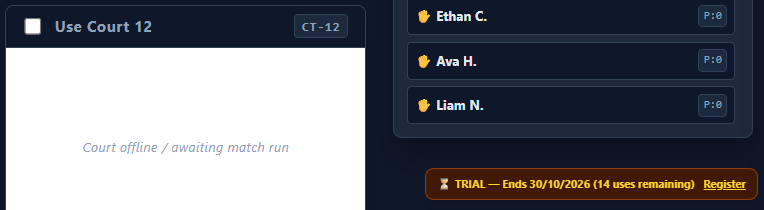 📸
📸
How the trial works
- A small badge in the bottom-right corner shows your remaining trial uses or days — it doesn't block anything on its own while the trial is still active.
- The trial ends after 15 app launches or 30 days, whichever comes first.
- Once the trial ends, a registration screen blocks further use until you register.
Registering
- 1Click Register on the trial badge (or wait for the registration screen once the trial ends).
- 2Enter the email address and license key you were provided when you purchased DM3W.
- 3Submit — the key is checked securely online, so the device needs an internet connection at this moment.
5. Managing the Player Pool
Click 👥 Manage Players in the toolbar to open the player roster drawer. This is where you add, edit, check in, and remove players, where the fixed-partner links are set up, and where you import and export your dataset as CSV files.
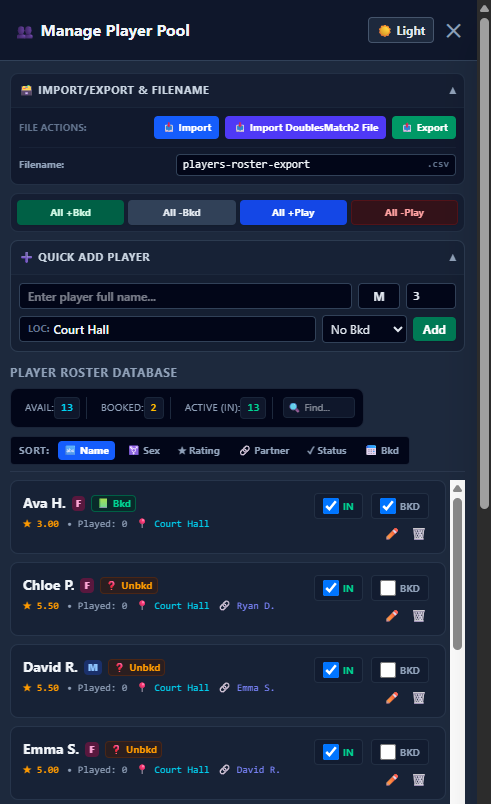 📸
📸
Adding and editing a player
Use the inline edit row to add a new player or update an existing one. Click ✏️ Edit Profile on a player's row, make your changes, then click 💾 Save to commit them.
| Field | What it does |
|---|---|
| Name | The player's display name. Used everywhere else in the app to identify them. |
| Sex | Used by the Gender Doubles and Mixed Doubles allocation options. |
| Rating | A numeric skill rating used by "Balance Team Ratings," "High / Low Pairing Split," and the "Skill-Tier Doubles" option (see Allocation Options). |
| Partner (Fixed Partner) | An autocomplete field for locking this player to a fixed doubles partner. See below. |
| Playing Location | Which venue/location this player belongs to. |
| In / Out (attendance) | Checkbox marking the player as checked in (present and eligible to be allocated to a court) or checked out (excluded entirely, no bench slot). |
| Bkd | A separate "booked" flag, independent of attendance, used for your own bookkeeping/tracking purposes. |
Fixed Partners
Typing into the Partner field shows an autocomplete dropdown of existing players. Selecting a partner creates a reciprocal link — the other player's own Partner field is automatically updated to point back to this player. Fixed partners are only actually kept together on court when the 🔗 Use Fixed Partners allocation option is switched on (see Allocation Options).
* — so the Partner autocomplete, and the 🔗 badge on the court board, can always tell them apart.
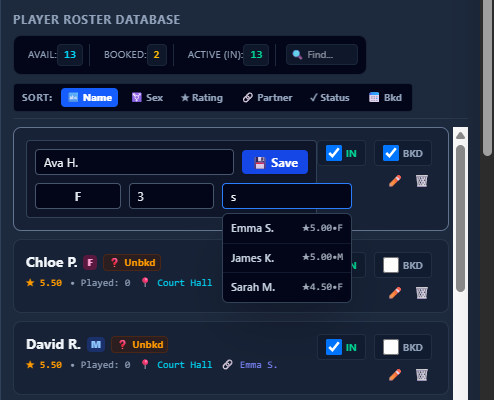 📸
📸
Bulk actions
At the top of the drawer, four buttons let you set attendance or booked status for every player currently shown (i.e. matching your active Location filter) at once:
- All +Bkd / All -Bkd — mark everyone as booked / not booked.
- All +Play / All -Play — check everyone in / out.
Managing your dataset: how Import and Export really work
Your data lives in two separate places inside the browser:
- The Player Pool — every player profile, across every location, stored together as one single dataset.
- The Round History — the log of rounds played, which only covers whichever location is currently active (it's cleared out automatically whenever you switch locations — see Getting Started & Locations).
Nothing is uploaded anywhere automatically — everything stays in this browser's local storage on this device. Exporting and importing CSV files is therefore your only way to back up your data, move it to another device or browser, or clean it up outside the app (e.g. in a spreadsheet).
The Import/Export & Filename panel
Expand the 🗃️ Import/Export & Filename panel at the top of the drawer to find the three file-action buttons and a Filename field:
- The Filename field sets the base name used for every file this drawer downloads. It's remembered between visits, and it automatically updates to match whatever file you last imported.
- Exporting here downloads only the player pool (roster) as
<filename>.csv— it does not include round history.
Round history is a separate export, produced from two other places in the app instead: the 📥 Export CSV button in the Round Log History section, and 💾 Save Session (see Session Management), which exports both the roster and the current location's round history together in one step.
Importing players
Two import formats are supported, each with its own button:
| Button | Format |
|---|---|
| 📥 Import | DM3W's own native CSV format — the same layout produced by this app's own 📤 Export button, so it is the easiest way to reload a previously exported roster or move a dataset between devices. |
| 📥 Import DoublesMatch2 File | The legacy column layout used by the older "DoublesMatch2" spreadsheet tool (PlayingLocation, Name, Sex, Rating, Playing, YesTime, LastCourt, xPlayed, Bkd, SetPartner). The text (No Partner) in the SetPartner column is recognised as "no fixed partner." Use this button only if you're bringing across a roster originally built for DoublesMatch2. |
Both import buttons behave the same way once a file is chosen:
- 1You're asked to confirm, since this overwrites your entire current player pool and round history.
- 2The file is read and every row becomes a player. A row needs at least a name, sex, rating, and attendance value to be accepted — badly-formed rows are skipped rather than crashing the import.
- 3Fixed-partner links are automatically repaired to be reciprocal: if only one side of a pair's Locked Partner/SetPartner column was filled in, the app fills in the matching player's own link to point back, so both halves of the pair are properly linked (see The Court Board for how this link is shown on court cards).
- 4The Location dropdown switches to the first venue found in the file (alphabetically), and the page reloads with the new roster in place.
Exporting players
Click 📤 Export to download the current entire roster (every location) as a CSV file, using the columns below — a full backup of every player's name, sex, rating, attendance state, fixed partner, location and booked flag:
| CSV Column | Meaning |
|---|---|
| Player Name | The player's display name. |
| Sex | Any single character is accepted (not just M/F). |
| Rating | Numeric skill rating. |
| Is Active | 1 for checked-in, 0 for checked-out. |
| Locked Partner | The fixed partner's exact name, or blank for none. |
| Playing Location | Which venue this player belongs to. |
| BKD | Yes or No — the separate booked flag. |
Deleting a player
Click 🗑️ Delete Profile on a player's row to permanently remove them from the pool. Any player whose Partner field points at them is automatically unlinked at the same time, so no other profile is left with a dangling fixed-partner reference. This cannot be undone from within the app — export a backup first if you might need the record later.
6. The Court Board
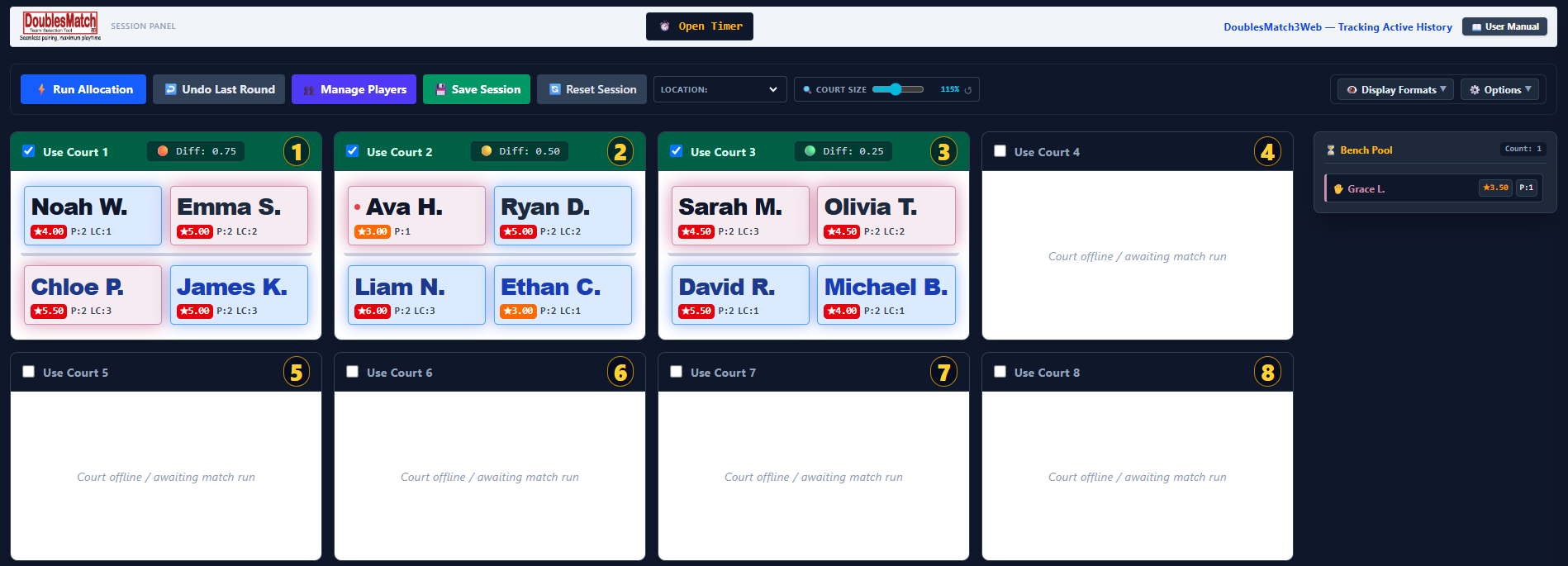
The main grid of court cards is where each round's matchups are displayed and can be adjusted by hand.
 📸
📸
Reading a court card
| Element | Meaning |
|---|---|
| Checkbox / "Use Court N" | Whether the court is switched on and available for allocation. |
| Diff badge (📊) | Shows how balanced the two teams' combined ratings are on that court, when "Show Court Balance" is enabled. |
| ★ rating badge | Each player's skill rating, when "Show Skill Ratings" is enabled. |
| P: n badge | How many rounds that player has played so far this session, when "Show Matches Played" is enabled. |
| Last-court badge | Which court that player was on in the previous round, when "Show Last Court" is enabled. |
| 🔗 badge | Appears between two players who are locked fixed partners and are playing together. |
| Coloured background/border glow on a slot | Gender Glow highlighting — tints the whole player slot (background, border and a soft shadow), not just the name, as a quick visual cue for each player's sex when enabled. The same toggle also adds a matching coloured accent to names in the Bench Pool. |
Auto-sizing active courts
DM3W automatically activates only as many courts as are needed for the number of currently checked-in players (four players per court), and any surplus players remain in the Bench Pool. As you check players in or out in the Manage Player Pool drawer, the number of active courts grows or shrinks live to match — you don't need to tick courts on or off yourself in the ordinary course of a session.
Drag and drop
You can manually adjust who's playing where:
- Drag a player from one court slot to another to swap them.
- Drag a bench player onto an empty (or occupied) court slot to bring them into play.
- Drag a player from a court back onto the Bench Pool sidebar to take them out of the round.
Manual changes are reflected immediately and are taken into account the next time you run an allocation or view the history matrix.
Bench Pool
The sidebar on the right lists every checked-in player who isn't currently placed on a court. A player's name flashes red with a ⚠️ Double Bye label if they have missed two rounds in a row, so you can spot and fix an unfair bench streak at a glance. Double-click any bench player's name to open the "Played With" panel for them.
7. Display Formats
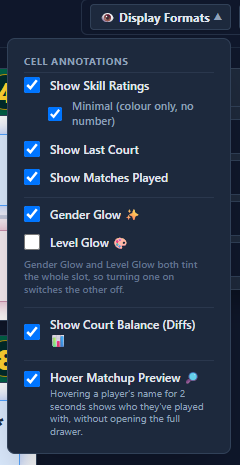
Click 👁️ Display Formats in the toolbar to control what's shown on each court card and in the Bench Pool, and to turn on the hover matchup preview.
 📸
📸
| Option | Effect |
|---|---|
| Show Skill Ratings | Displays each player's ★ rating badge on court cards and the bench, coloured by their skill level. A Minimal (colour only, no number) sub-option appears underneath once this is ticked — see below. |
| Show Last Court | Displays which court each player was on in the previous round. |
| Show Matches Played | Displays each player's running "P: n" games-played count. |
| Gender Glow ✨ | Tints each player's court slot (background, border and shadow) based on sex, for quick visual scanning, and adds a matching coloured accent to names in the Bench Pool. |
| Level Glow 🎨 | The same whole-slot tint as Gender Glow, but by each player's own skill level colour instead of their sex — see below. |
| Court Divider | A Hidden / Normal / Bold selector for the line between the two team rows on each court card — see below. |
| Show Court Balance (Diffs) 📊 | Shows a rating-difference badge on each court, indicating how evenly matched the two teams are. |
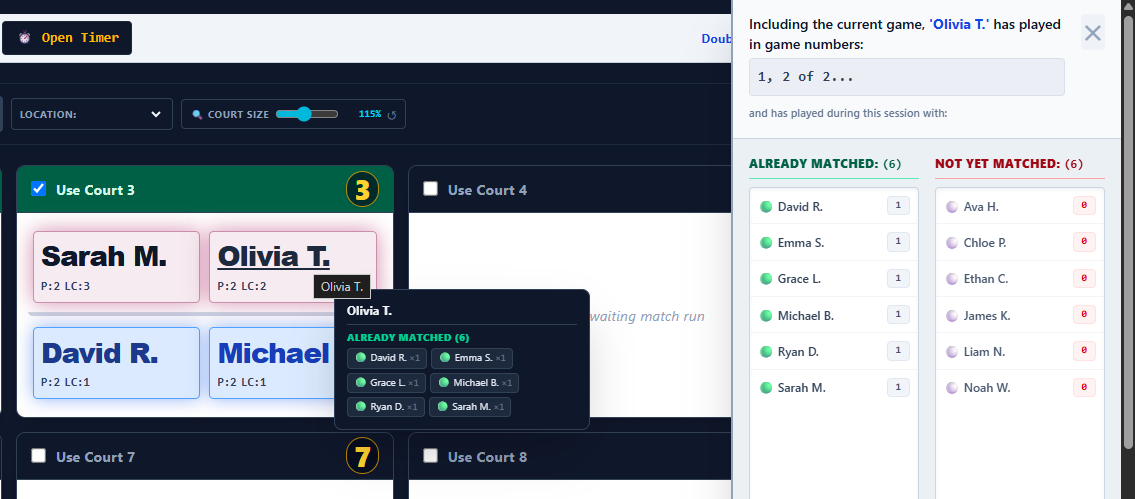
| Hover Matchup Preview 🔎 | Hovering a player's name — on a court card or in the Bench Pool — for about 2 seconds pops up a small tooltip listing who they've already played with, without opening the full Played With panel. On by default; untick here to turn it off. |
Minimal Rating Badge
With Show Skill Ratings ticked, a smaller Minimal (colour only, no number) checkbox appears indented beneath it. Turning this on replaces the "★2.54" text badge with a plain small square in that player's skill-level colour — a subtler cue for a quick glance across the board without the clutter of printed numbers everywhere. The exact rating is still available: hover over the swatch to see it in a tooltip, the same way it's always printed when this option is off.
Level Glow 🎨
Level Glow tints each player's entire court-card slot — and, more subtly, their row in the Bench Pool — using their own skill level's colour (the same colour configured in Edit Skill Levels), rather than printing a separate badge. It's the same idea as Gender Glow, just driven by skill level instead of sex, and is meant for a quick at-a-glance read of who's in which level across a whole board of courts.
Court Divider
Each court card shows two team rows, and by default a line separates them — a visual "net." The Court Divider selector controls that line:
- Hidden — no line at all. Useful when you're placing 4 players on a court and telling them to sort out partners themselves, since a visible team split isn't meaningful there.
- Normal — today's existing look (the default; nothing changes until you switch this).
- Bold — a thicker, darker line, for sessions where which two players are actually paired together matters and should stand out.
8. Allocation Options
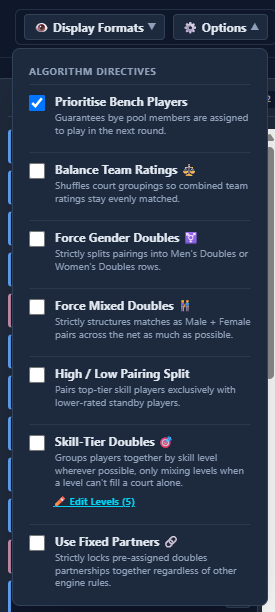
Click ⚙️ Options in the toolbar to control how the automatic allocation engine builds each round's matchups. These settings apply the next time you click ⚡ Run Allocation.
 📸
📸
| Option | Description |
|---|---|
| Prioritise Bench Players | Guarantees bye pool members are assigned to play in the next round. |
| Balance Team Ratings ⚖️ | Shuffles court groupings so combined team ratings stay evenly matched. |
| Force Gender Doubles ⚧ | Strictly splits pairings into Men's Doubles or Women's Doubles rows. |
| Force Mixed Doubles 👫 | Strictly structures matches as Male + Female pairs across the net as much as possible. |
| High / Low Pairing Split | Pairs top-tier skill players exclusively with lower-rated standby players. |
| Skill-Tier Doubles 🎯 | Groups players together by rating wherever possible, only mixing levels when a tier can't fill a court on its own. Tiers are your own editable skill levels (see below), not a fixed set of bands. Mixing a thin tier with its nearest neighbour is expected whenever that tier's headcount this round isn't an exact multiple of four — the few players left over are matched with whichever tier is closest rather than sitting out. |
| Use Fixed Partners 🔗 | Strictly locks pre-assigned doubles partnerships together regardless of other engine rules. |
Editing Skill Levels
Next to the Skill-Tier Doubles checkbox is an ✏️ Edit Levels link showing how many levels are currently defined. Click it to open the level editor.
Each level is a row with four parts: a colour swatch (used for that level's rating-badge colour throughout the app), a name you can type freely, a floor rating (the lowest rating, inclusive, that belongs to this level), and a live count of how many of this session's currently-active players (within the current location filter, if one is set) fall into that level right now. Levels must be entered lowest floor to highest, starting at 0 — the app runs each player's rating down the list and places them in the highest level whose floor they meet or exceed. The count updates as you type, so you can see straight away whether a floor change has emptied one level into its neighbour or split a crowded one apart.
Use ➕ Add Level to insert another row (up to 8 levels total), or the 🗑️ icon to remove one (down to a minimum of 2). Reset to Default restores the app's built-in five-level starting point (Beginner / Novice / Intermediate / Advanced / Pro at 0 / 2 / 3 / 4 / 5). Changes only take effect once you click Save — closing with Cancel or ✕ discards them. Your levels are saved on this device and are used both by Skill-Tier Doubles allocation and by the colour of every player's rating badge elsewhere in the app.
9. Generating a Round
- 1Make sure everyone present is checked in via the Manage Player Pool drawer.
- 2Set your allocation options as described above.
- 3Click ⚡ Run Allocation.
The engine fills every active court, updates each player's games-played and last-court figures, and logs the round into the Round Log History and History Matrix sections below. Anyone left over becomes the new Bench Pool for that round.
You can run allocations again at any time to generate the next round — the engine automatically takes bench history into account (especially with "Prioritise Bench Players" enabled) so the same players aren't left out repeatedly.
Undoing a round
Click ↩️ Undo Last Round next to ⚡ Run Allocation to reverse the most recently generated round: every involved player's games-played count and last-court badge is rolled back, and the court board is restored to how it looked before that round ran.
10. "Played With" Panel
Double-click any player's name — on a court card or in the Bench Pool — to open the Played With panel. It shows:
- Which round numbers that player has appeared in so far this session.
- An Already Matched column — every other checked-in player they've shared a court with, and how many times.
- A Not Yet Matched column — everyone they haven't played with yet.
This is useful for manually steering variety, or for spotting when two players have (or haven't) played together enough over the course of a session.
 📸
📸
11. Round History Matrix
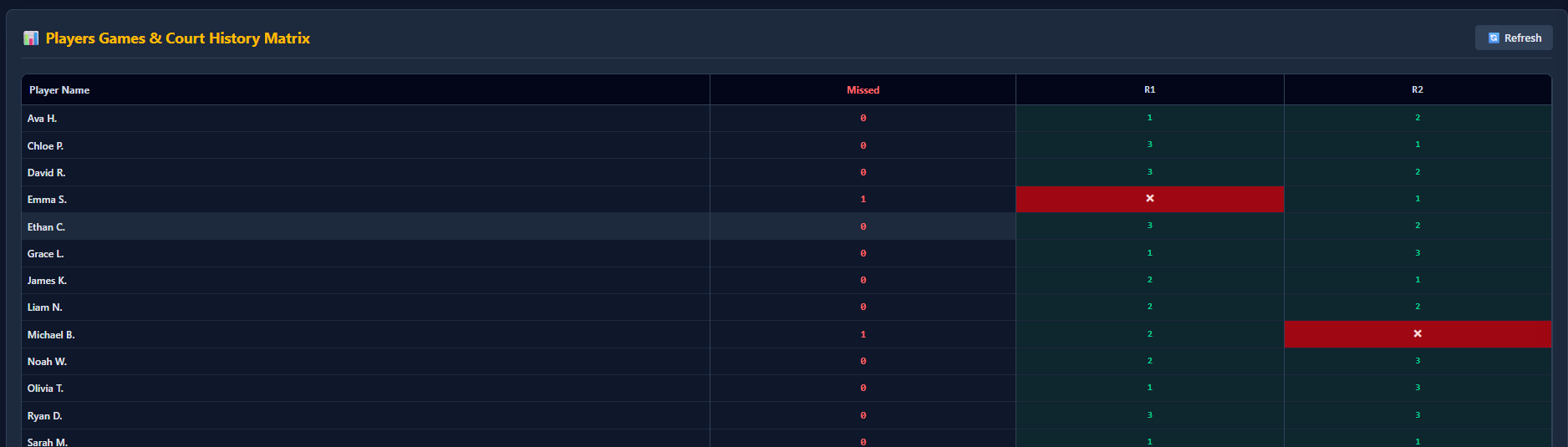
The 📊 Players Games & Court History Matrix section at the bottom of the page shows a full grid: one row per checked-in player, one column per round played, with the court number they were on (or a red ✖ if they missed that round), plus a running Missed count per player.
Click 🔄 Refresh to reload the matrix — useful after you make manual drag-and-drop changes, since the matrix does not always update itself live.
 📸
📸
12. Round Log History
The 📜 Chronological Round Log History section lists every round generated this session, with the exact matchups per court. Click 📥 Export CSV to download the complete round-by-round log as a spreadsheet for your own records.
This round-history export is separate from the Manage Player Pool drawer, which only ever exports the player pool (roster), not round history (see Managing the Player Pool). The same round-history data is also included automatically whenever you use 💾 Save Session or back up before switching locations (see Session Management), if a round history exists for the current location.
13. Countdown Timer
The round timer lives in its own separate window, not in the main dashboard — this means it can be dragged onto a different monitor (handy for a second screen the players can see) and keeps running on its own, independently of whatever you're doing on the dashboard.
- 1Click ⏱️ Open Timer in the header to open the timer window.
- 2Clicking the same button again while the timer window is already open simply brings it back into focus — it will not reset or reload an in-progress countdown.
Inside the timer window:
- Edit the minutes/seconds fields directly to set a custom duration (defaults to 15 minutes). These fields are locked while the timer is actively running or paused mid-count.
- Click ▶️ Start to begin the countdown; it becomes ⏸️ Pause while running.
- Click 🔄 Reset to return to the last duration you set.
- When the timer reaches zero, an alarm sound plays. Click 📂 Browse... in the timer window to upload your own
.wavsound file instead of the default beep, or 🗑️ Reset to Default to remove a custom sound. This replaces the default beep, or your own uploaded sound file — the alarm sound setting lives in this window now, not in Display Formats.
14. Session Management
| Button | What it does |
|---|---|
| 💾 Save Session | Confirms with you, then exports both the current (all-location) roster and the current location's round history as CSV files in one step — the recommended way to end a session cleanly. |
| 🔄 Reset Session | Confirms with you, then clears every player's games-played and last-court figures and wipes the round history — use this to start a completely fresh session with the same roster. This affects the whole player pool (every location), not just the currently-selected one. |
15. Tips & Troubleshooting
- A player's fixed partner didn't update, or the 🔗 badge isn't showing? Open Manage Player Pool and re-save the Partner field on either player — this forces the reciprocal link to be written on both records. If two players share the exact same name, give one of them a small distinguishing mark (see Managing the Player Pool) so the app can always tell them apart.
- Can't find "All Locations" in the Location dropdown anymore? That option has been removed on purpose (see Getting Started & Locations) — pick the specific venue you want to work with instead.
- Courts aren't turning on as I check players in? Auto-sizing only activates courts up to the number needed for the currently checked-in count at four players per court; if you need more courts active than the current headcount justifies, tick them on manually.
- The history matrix looks out of date after a manual drag-and-drop change? Click the 🔄 Refresh button in that section.
- Switching locations wiped my round history? This is expected — each location keeps its own independent round history. Always accept the backup prompt before switching if you want to keep a copy.
- Importing a file wiped out players from a different venue? Also expected — Import always replaces the entire player pool across every location, not just the current one (see Managing the Player Pool). Always export a full backup first.
- Importing a DoublesMatch2 file didn't bring across partners correctly? Make sure the SetPartner column uses
(No Partner)exactly for players without a fixed partner, and that partner names match another row's Name column exactly (including spelling and capitalisation). - Losing data between sessions? DM3W stores everything locally in your browser. Using a different browser, device, or a private/incognito window will not show your existing data. Export regularly, especially with 💾 Save Session.
- No Install App button? It only appears on Chrome/Edge desktop or Chrome on Android, and only before the app is already installed. On an iPhone or iPad, use Safari's own Share → Add to Home Screen instead (see Installing as an App).
- Registration won't go through? Double-check the email and license key are typed exactly as provided, and make sure the device is online — the key is verified securely over the internet (see Trial & Registration).